

The Options Page and its Switches
Where to find the Virtual Folders options in SSMS, what each group contains, and how to switch off a folder or right-click item that you do not want.
On the Virtual Folders Options page you decide what the add-in does. Open Tools → Options → SQL Server Object Explorer → Virtual Folders, or right-click a node such as Databases and choose the green SQLTreeo - Click here to Configure item.
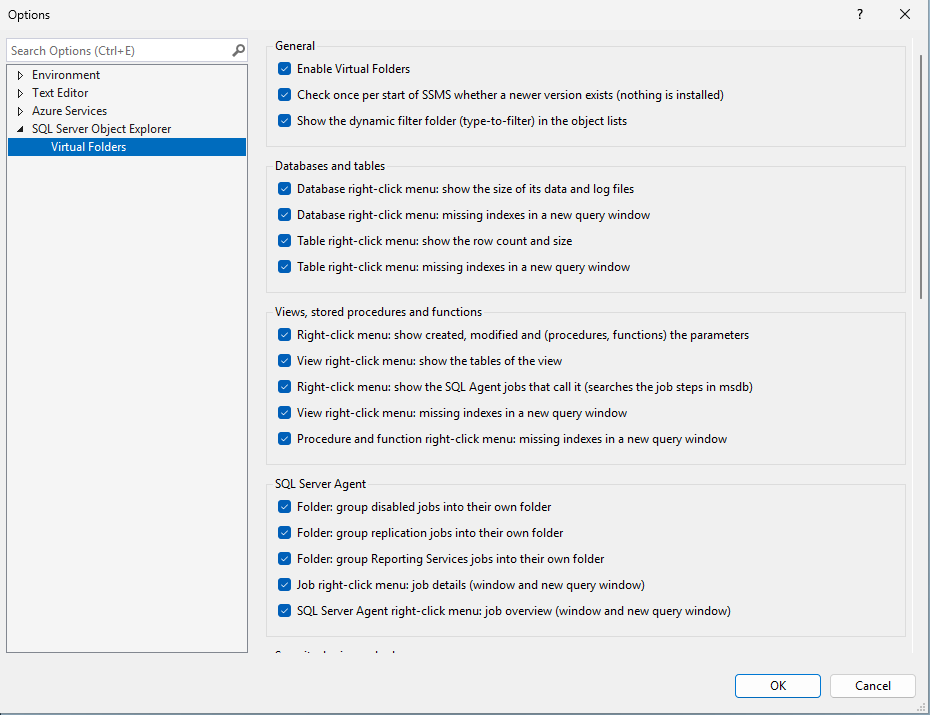
Every folder and every right-click item that Virtual Folders adds has its own switch, so a part that is in your way, slow or not working on your server can be turned off without losing the rest. A part that is switched off is not queried.
The groups
- General: Enable Virtual Folders, the check for a newer version, and the dynamic filter folder, see What is (Click here to filter)?.
- Databases and tables: the sizes of a database, the row count and size of a table, and Missing indexes in a new query window for both. See Missing Indexes in a Query Window.
- Views, stored procedures and functions: created and modified and parameters, the tables of a view, the jobs that call an object, and Missing indexes for views and for procedures and functions. See Details of Views, Procedures and Functions.
- SQL Server Agent: the folders for disabled, replication and Reporting Services jobs (Special SQL Agent Folders), and the Job details and Job overview items (Job Details and Job Overview).
- Security: logins and roles: the folders for disabled, SQL and Windows logins (Special Login Folders), and the members on the menu of server roles and database roles (Role Members).
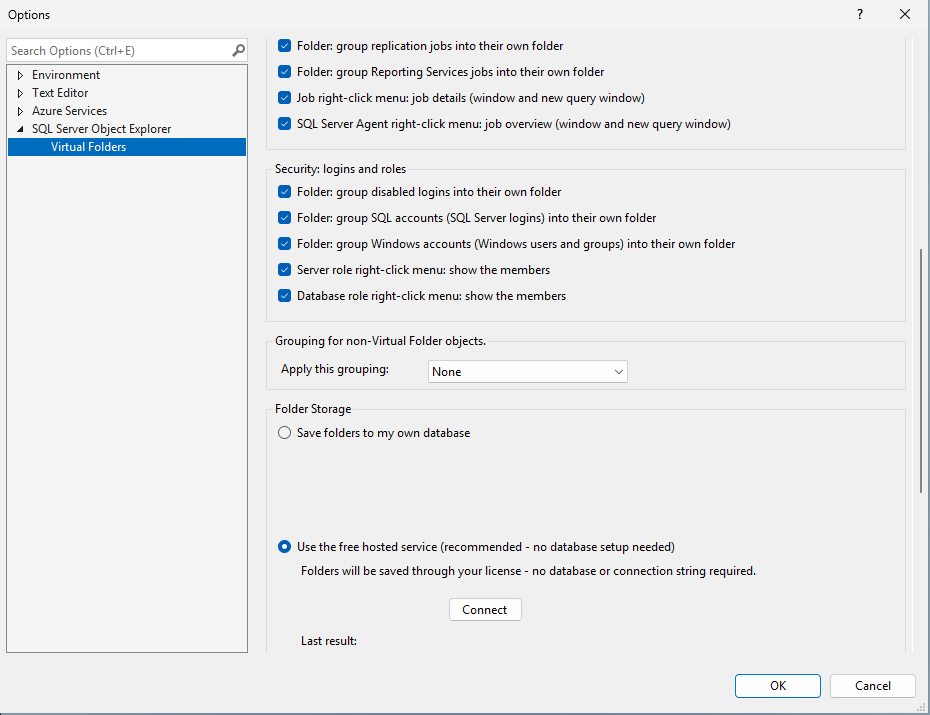
Below these are the setting for how objects that are not in a Virtual Folder are grouped, Folder Storage (see How Virtual Folder Persistence works), License and About.
The items New Virtual Folder, Edit Virtual Folder, Delete Virtual Folder and the green item that opens this page cannot be switched off.
Check for updates
Once per start of SSMS the add-in reads a small file from sqltreeo.com (/virtual-folders/latest.json) to see whether a newer version exists for your version of SSMS. If so, the green item on the right-click menu gets update x.y.z.w available behind its text, and the About group says which version it is and links to the download page. There is no dialog, nothing is downloaded or installed, and no license key or other data goes along: the website only sees your IP address and the version of the add-in, as with any visit. The result is not saved.
Switch the check off at the top of the page, in General. Check now under About asks again at once.
License
The License group shows the state of your license and where to enter a key. The 30-day trial starts by itself. During the trial no key is needed and nothing is sent for the license. A key you bought is checked with the SQLTreeo license service when SSMS starts and when you press Verify. If the check cannot be reached, the last known state is kept and the page says so.