
Group databases into folders in SSMS Object Explorer
SSMS shows every database in one long list. Group databases, tables and jobs into your own folders in the Object Explorer with the Virtual Folders add-in.
A server with fifty databases shows fifty databases, in alphabetical order, in one list. SQL Server Management Studio has no way to say “these five belong to the web shop, those are monitoring, the rest is archive”. The same goes for a database with a thousand tables or a server with two hundred Agent jobs.
What SSMS offers by itself
- Filter Settings on a node hides everything that does not match a name or schema. It is one filter at a time: you see the web shop databases or the monitoring databases, never both as groups.
- Registered Servers lets you group servers. It does not group the databases, tables or jobs inside a server.
- Naming conventions, such as a prefix per project, keep related objects next to each other in the list. That only works when you control the names, and renaming a database or table to tidy up a tree view is rarely an option.
- Schemas group tables and procedures inside a database, but moving an object to another schema changes the database and can break code that refers to it.
None of these gives you a folder.
Folders with Virtual Folders
Virtual Folders is an add-in for SSMS 20, 21 and 22 that adds your own folders to the Object Explorer.
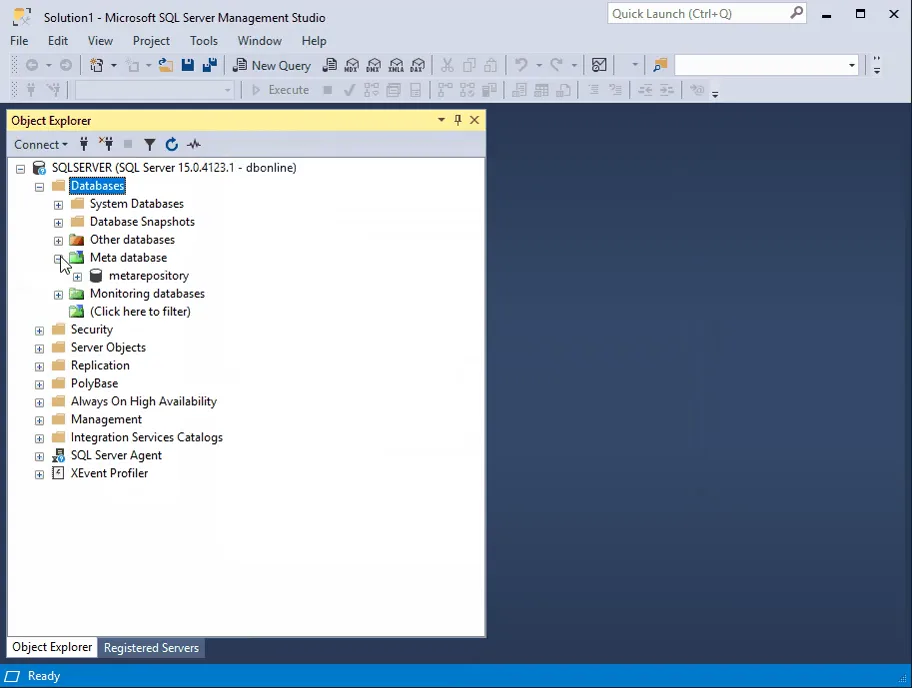
- Download the add-in for your SSMS version and install it. The installation guide for SSMS 22, SSMS 21 or SSMS 20 takes a few minutes.
- In the Object Explorer, right-click the Databases node and choose New Virtual Folder.
- Enter a folder name, for example Monitoring databases.
- Under Match objects, enter the names of the databases that belong in the folder, separated by a semicolon (
;). - Choose the visibility: Private shows the folder only to you, on the computer where you created it. Shared shows it to your team members as well, when your license includes shared folders.
The folder appears under Databases with the matching databases inside it. Expand a database in the folder and everything works as before: the folder only changes where the database is shown.
The same works on these nodes: tables, views, synonyms, stored procedures, user defined functions, logins and SQL Server Agent jobs. For objects inside a database, enter the names including the schema, such as sales.Orders. Tick Universal folder to show a folder with that name on all of these nodes. See Add Virtual Folders for every field.
Nothing changes on the server
The folders exist in SSMS only. No database, table or job is renamed, moved or altered, and other tools and scripts see the server exactly as before. That is why they are called virtual.
To keep the folders between sessions, the add-in stores their definition in one small table. By default that is in tempdb, which is cleared when SQL Server restarts. On Azure SQL Database the folders are kept in memory only, until SSMS closes. Point the add-in to a database of your choice to keep them for good, as described in How Virtual Folder Persistence works.
More ways to tame the tree
- Special SQL Agent folders put disabled, replication and Reporting Services jobs in their own folders automatically.
- (Click here to filter) filters a node by typing the filter text into the tree itself, without the filter dialog.
The add-in comes with a 30-day trial. See the Virtual Folders page for licenses.