

How Virtual Folder Persistence works
Virtual folders are kept in tempdb by default and are lost when SQL Server restarts. Store them in a database of your choice instead.
Default behavior
Virtual Folders are saved in the TempDB database of SQL Server. When SQL Server is restarted, TempDB is automatically rebuilt (based on the model database).
The virtual folders are then also cleared.
In Azure SQL Database, there is no TempDB available.
You can still create virtual folders, but these are only temporarily held in memory. When SSMS is closed, the virtual folders are cleared.
Customized
Virtual folders can be saved to any SQL Server instance accessible from SSMS on your desktop.
Go to Tools > Options > SQL Server Object Explorer > Virtual Folders to configure this.
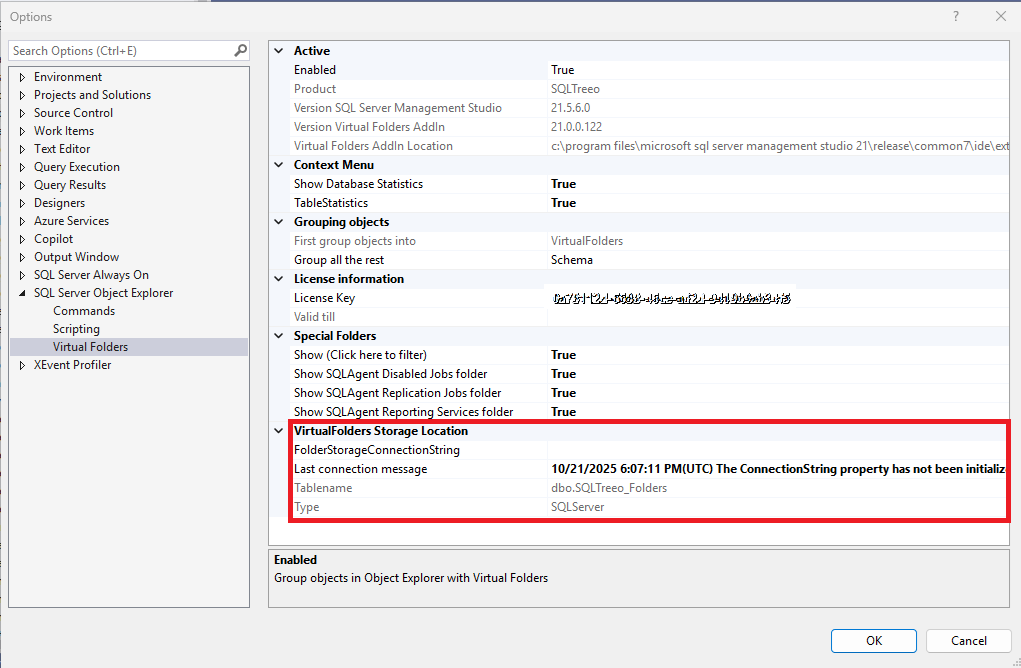
Use www.connectionstrings.com as a reference to create a connection string.
If you have access to a SQL Server—whether it’s development, test, production, local, remote, or Azure—you can use it as a storage location for your virtual folders.
You can select any database where you have CREATE TABLE permission.
The SSMS Add-In will automatically create the table dbo.SQLTreeo_Folders if it doesn’t already exist, and store the folder configuration in it.