

Install Virtual Folders on SSMS v22
Step by step: install the Virtual Folders add-in in SQL Server Management Studio 22. Unblock the zip, extract it into the Extensions folder, restart SSMS.
Make sure you unblock the downloaded zipfile before extracting. The AddIn will not work if this step is skipped!
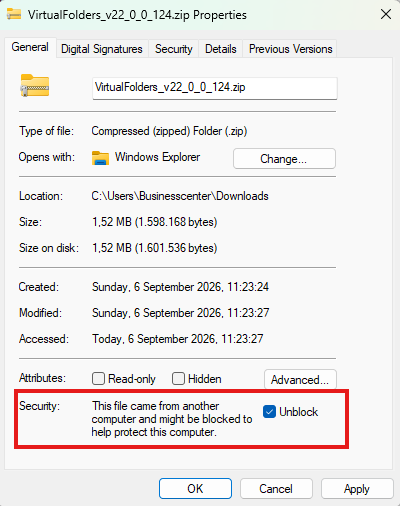
After you have downloaded the ZIP file VirtualFolders.zip you can unzip it into the SSMS Extensions folder.
In this guide, you will learn how to Install Virtual Folders effectively.
How to Install Virtual Folders
Typically extensions for SQL Server Management Studio v22 are installed in this folder:
C:\Program Files\Microsoft SQL Server Management Studio 22\Release\Common7\IDE\Extensions\
The folder structure can look like this:
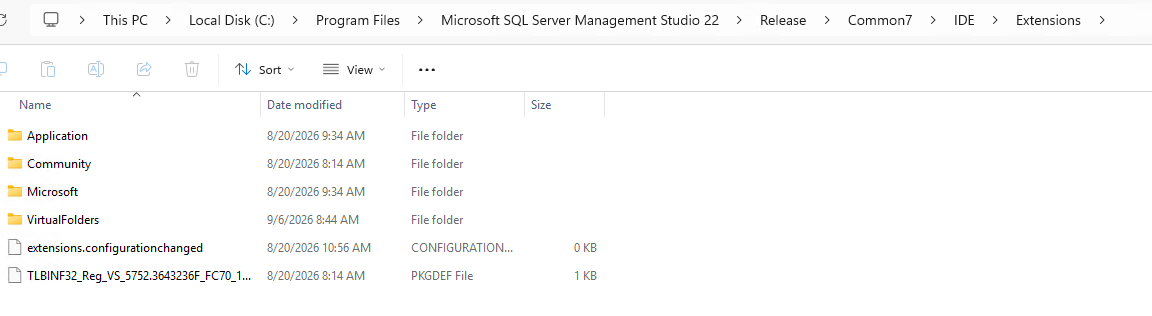
Extract the VirtualFolders.zip in folder C:\Program Files\Microsoft SQL Server Management Studio 22\Release\Common7\IDE\Extensions\ and restart SSMS.
The zipfile contains a subfolder VirtualFolders. That folder should be under the Extensions folder of SSMS.
Under Tools -> Options -> SQL Server Object Explorer you should find a new entry “Virtual Folders”
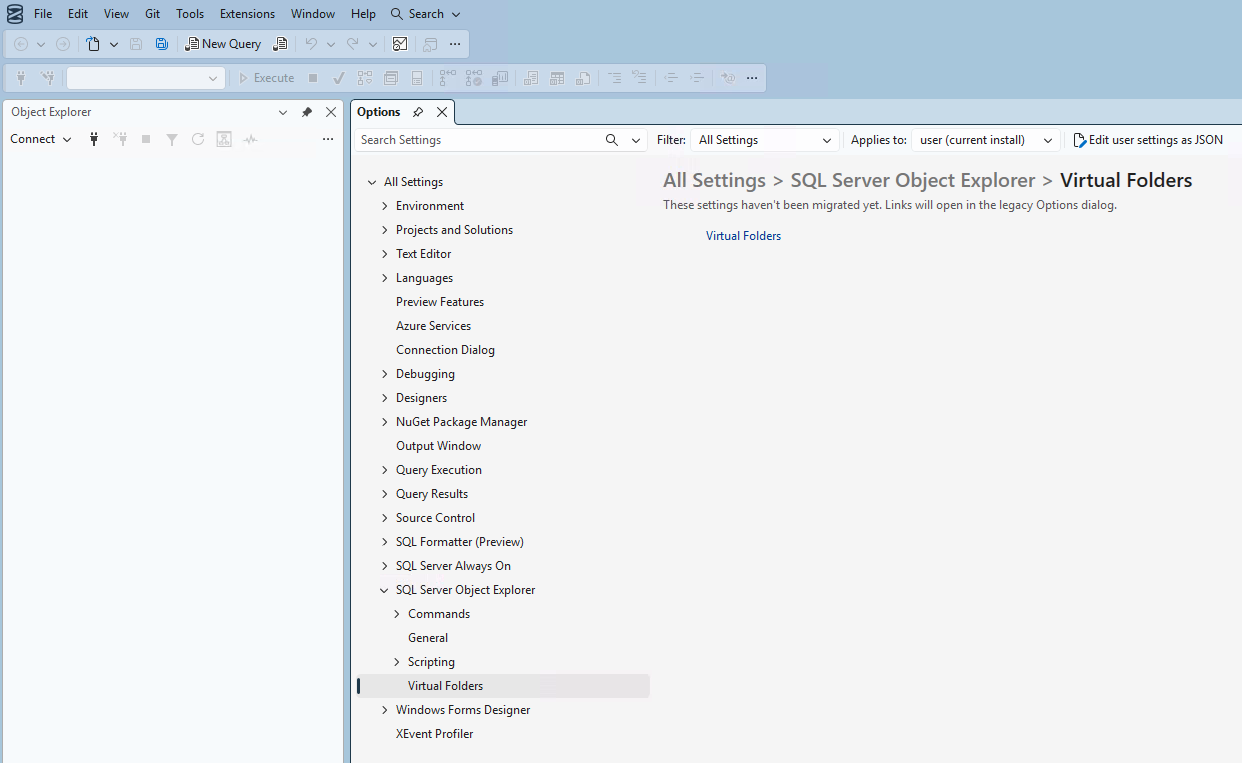
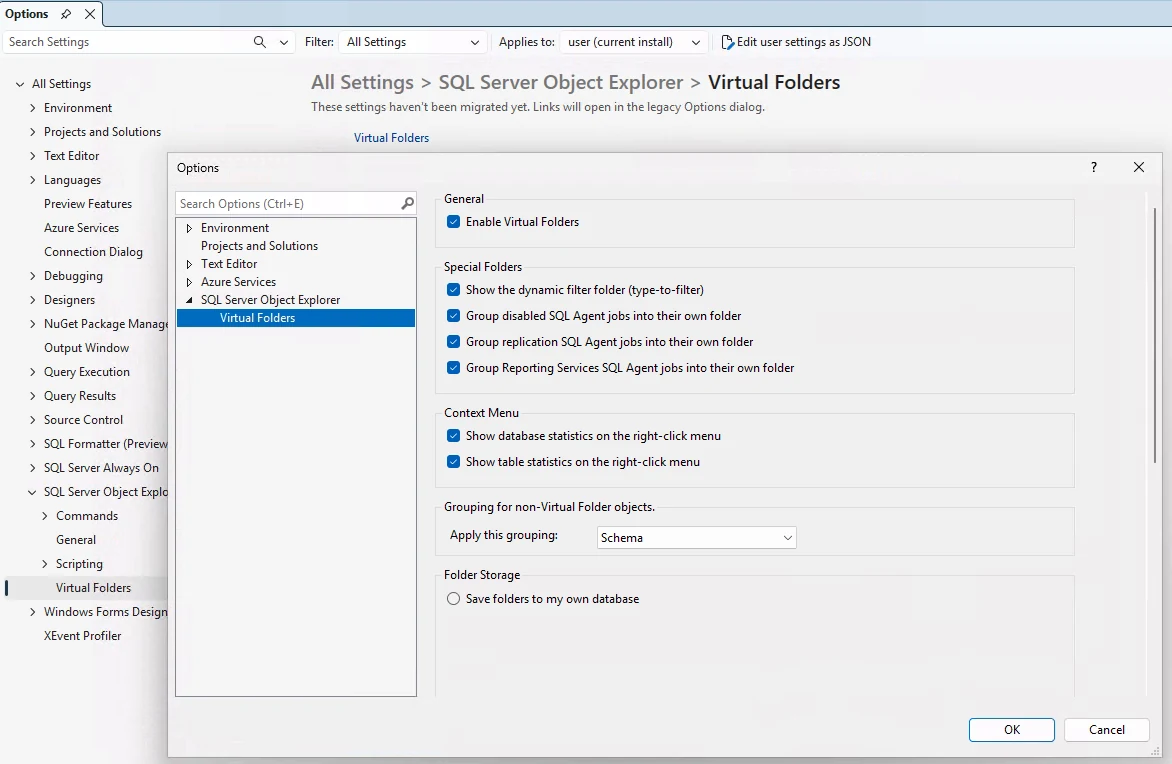
That shows that the AddIn is recognized by SSMS and it is loaded successfully. If you see an error in right panel, refer to the post Error loading property page