
Add many servers at once
Add tens or hundreds of SQL Server instances in one run: from a list or file, a Central Management Server, SSMS, the network or availability groups.
Adding servers one by one works for five servers. For an estate there is Add many servers: it collects server names from five sources, asks once how to sign in, and adds everything in one run.
Open it with the import button next to Add… above the server list, or with Add many servers… on the empty start screen. Adding many servers works during the trial and with a license key. After the trial, without a key, the application reads up to three servers and this dialog asks for a license key, see Trial and licensing.
A source only collects names. The application signs in to the servers it found only when you press Add.
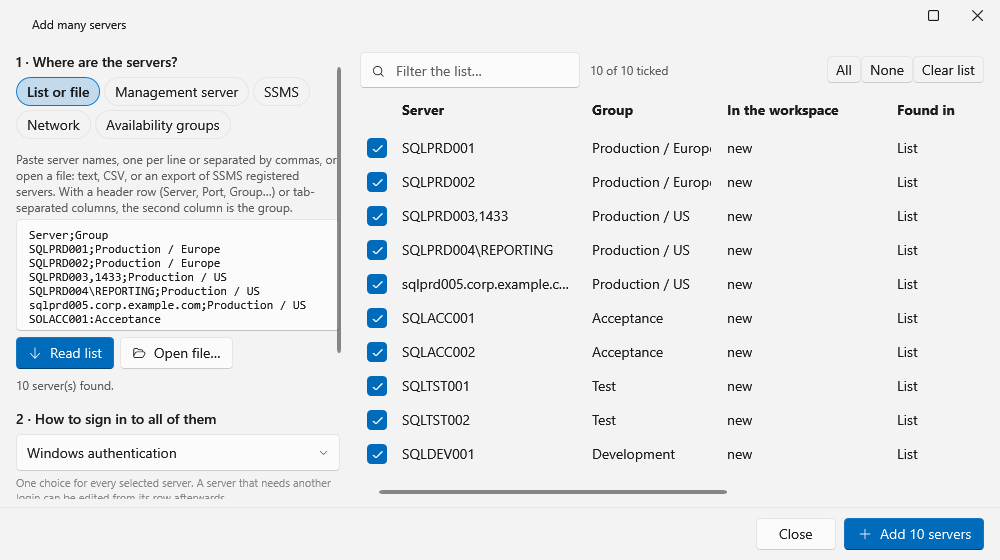
1. Where are the servers?
List or file
Paste the names, or open a file with Open file… (text, CSV, tab-separated, or an export of SSMS registered servers). Read list puts the names in the list on the right. The reader understands the lists DBAs usually have:
- One server per line:
SQL01,SQL02\INST1,SQL03,1444. - Several names on one line, separated by commas:
SQL01, SQL02, SQL03. - Columns separated by a tab, a semicolon or a pipe. Without a header row the first column is the server, then an optional port, then the group, then a description.
- A header row. The columns are then found by name:
Server,ServerName,SqlInstanceorName;ComputerNameorHostNamewithInstanceNameandPort;Group,Folder,EnvironmentorCategory;Description,Comment,NotesorVersion. An inventory copied from Excel, a query result copied from SSMS or a CSV file exported with dbatools can be used as it is. - Connection strings: the server is taken from
Server=orData Source=. SQL03:1444is read asSQL03,1444.- Blank lines and lines that start with
#,--or//are ignored. - An export of SSMS registered servers (
.regsrvr) is recognized and read with its groups.
A line that cannot be a server name is skipped and reported, not guessed at.
Server;Group
SQL01;Production
SQL02\INST1;Production
SQL03,1444;Test
Management server
Reads the Database Engine servers registered on a Central Management Server, with the folder path as their group, for example Production / Europe. Pick the management server with Choose server…, then press Read. The management server itself is offered as well.
The login needs the msdb role ServerGroupReaderRole on the management server. Without it the dialog says that the login may not read the registered servers.
SSMS
Reads the Local Server Groups of SQL Server Management Studio for your Windows user: server names and groups. The passwords saved in SSMS are never read. Recent connections are listed but not ticked. When SSMS knows a Central Management Server, the dialog names it and fills it in under Management server.
Network
Asks once which SQL Server instances announce themselves on this network segment, as SSMS does under Browse for more. This can take up to half a minute. The limits:
- It finds instances that answer through the SQL Server Browser service. Servers behind a router or firewall, hidden instances and most stand-alone default instances do not answer.
- It does not sign in anywhere and does not probe addresses or ports.
- What answers is listed but not ticked. Nobody has said yet that these servers are yours to look after.
Availability groups
Asks every server already in the workspace that has Always On enabled for the replicas and listeners of its availability groups. Replicas are ticked. Listeners are listed but not ticked, because a listener shows the jobs of the replica it leads to. More in Jobs in availability groups.
One list
Sources add up: read a list, then search the network, and add everything in one run. A server found by two sources, or written in two ways (SQL01, tcp:sql01,1433, SQL01.corp.local), is one row. A server that is already in the workspace is marked already in the list and cannot be ticked. The Group column can be edited per row. The filter box narrows the list, and All and None act on the rows the filter shows.
2. How to sign in to all of them
One choice for every ticked server: Windows authentication, SQL Server authentication, or Microsoft Entra ID (integrated or default credential). The interactive Entra sign-in is not offered here, because it prompts per server.
With SQL Server authentication you type the user name and password once. Remember the password saves it encrypted for your Windows user account. A server that needs another login can be edited from its row in the server list afterwards.
3. Options
- Group for all: files every ticked server under one group. Leave it empty to keep the group each server has from its source.
- Keep servers that cannot be read in the list: on by default. Such a server stays in the server list and is tried again later.
- Encrypt connections and Trust server certificates, for all servers of the run.
What happens during the run
Press the add button, which shows the number of ticked servers (for example Add 12 servers). There is no dialog per server. The servers are read a limited number at a time: by default between 8 and 32, depending on the size of the workspace. The progress line counts what was added, what was already there and what failed. Stop lets the servers that are being read finish and does not start the rest.
- A wrong password does not reach hundreds of servers. When you add more than three servers with SQL Server authentication, the first three are read on their own. When all three refuse the login, nothing else is tried. Later in the run, five refusals in a row stop it. The dialog then asks you to check the login and the password and to add the remaining servers again.
- A server that refused the login is not retried automatically. Repeated failed logins lock accounts. Correct the login with Edit connection… or use Refresh on its row. A server that was read before and refuses the login later is retried once an hour.
- A server that cannot be reached stays in the list when the option is ticked. It is retried after 30 seconds, then after 1, 2, 4 and 8 minutes, then every 15 minutes. Without the option it is left out and stays ticked in the dialog for another try.
- Two names for one instance, such as an alias, an IP address or the listener of a classic availability group, are recognized after the first read. The second name is not added.
When the run ends, the dialog lists what became of each server: Added, Added, with a note, Already in the list, Already shown, Login refused, Could not be read or Not tried, each with the reason.
Export the list for a colleague
The export button at the bottom of the server list writes servers.csv with Server;Group lines. It holds names and groups, nothing else: no logins, no passwords, no connection options. A colleague opens the file with List or file → Open file… and signs in with their own account.
Living with many servers
- Servers view. One sortable row per server, included or not, read or not. What needs a look sorts first, and Only servers that need a look hides the rest: servers that are not read, not current, have a note, or have failed or too long runs.
- Filter box. Above 8 servers the list gets a filter box. It matches on server name, instance name, group and the name of an availability group. Some words select by state or role when typed in full:
failed(the last read failed),note(the server has a note),running(jobs are running),excluded(not ticked), andprimary,secondaryandcontainedfor the availability group roles. - Compact rows. Above 20 servers every server takes one line: a state dot, the name, the number of running jobs and the number of failed runs in the last 24 hours. The rest is in the tooltip.
- Groups. Servers with a group are shown under collapsible group headers with all and none. Right-click a header for Only this group, Include the group, Exclude the group and Remove the group’s servers from the workspace…. Groups have one level.
- All and None act on what the filter shows. Type
prodand press None to exclude production only. - Ticking a server that was never read reads it at once.
The reading schedule follows the number of servers, so the same settings serve five servers and five hundred: how many servers are read at the same time, how often the archive is written and how many history rows one read takes. In a very large workspace the two intervals stretch as well (with the default settings, the 30 seconds above 500 servers and the 10 minutes above 1,000). Settings → Reading the server shows what it comes to, for example: With 300 servers in the workspace: running jobs are checked every 30 seconds; every server is read in full every 10 minutes; 30 servers are read at the same time; the local archive is written every 60 minutes; one read takes at most 40,000 history rows from a server. The last two points are explained in Job history, baselines and long runs.
Two more things change with the size of the workspace:
- Rhythm looks for overlapping jobs within each server when more than 12 servers or contained availability groups are included. Across hundreds of servers some job always runs, so every job would overlap every other. A window that holds more than 600,000 runs is not drawn; the view says so and asks for a shorter window, a job filter or fewer servers.
- The diagnostics report describes at most 20 servers in full, see The diagnostics report.
Related
- Getting started
- Permissions and what is read, with a script for a login you can create on every server.