

Find configuration drift across all your SQL Servers
Compare sp_configure settings, trace flags, logins, Agent and database options of one reference SQL Server with all your other instances, in one matrix.
Most DBAs have a standard for their instances: cost threshold for parallelism, max degree of parallelism, max server memory, the logins that should exist, the recovery model of the databases. Over time every server drifts a little from it. Comparing two servers finds the difference between those two; to see the whole estate you need one reference server against all the others.
This article shows how to do that by hand and with SQLTreeo Compare.
By hand
In SQL Server Management Studio, register your servers under a group in Registered Servers (or a Central Management Server), right-click the group and choose New Query. A query in that window runs on every server of the group and adds a Server Name column:
SELECT name, value, value_in_use
FROM sys.configurations
WHERE name IN ('cost threshold for parallelism', 'max degree of parallelism',
               'max server memory (MB)', 'optimize for ad hoc workloads')
ORDER BY name;
Copy the result into a spreadsheet and pivot it with the setting names as rows and the servers as columns, and the differences stand out.
That works for one view at a time. Logins and server roles, trace flags, database options, SQL Server Agent, Database Mail and Resource Governor each need their own query and their own pivot.
With SQLTreeo Compare
- On the start page, choose Compare several environments at once and click Server configuration.
- Name the baseline, for example Production or Standard, and click Choose… to pick the reference instance. No database is needed.
- Add the other servers: rename the suggested environments, click Add environment for more, and pick the instance of each one.
- Press Compare.
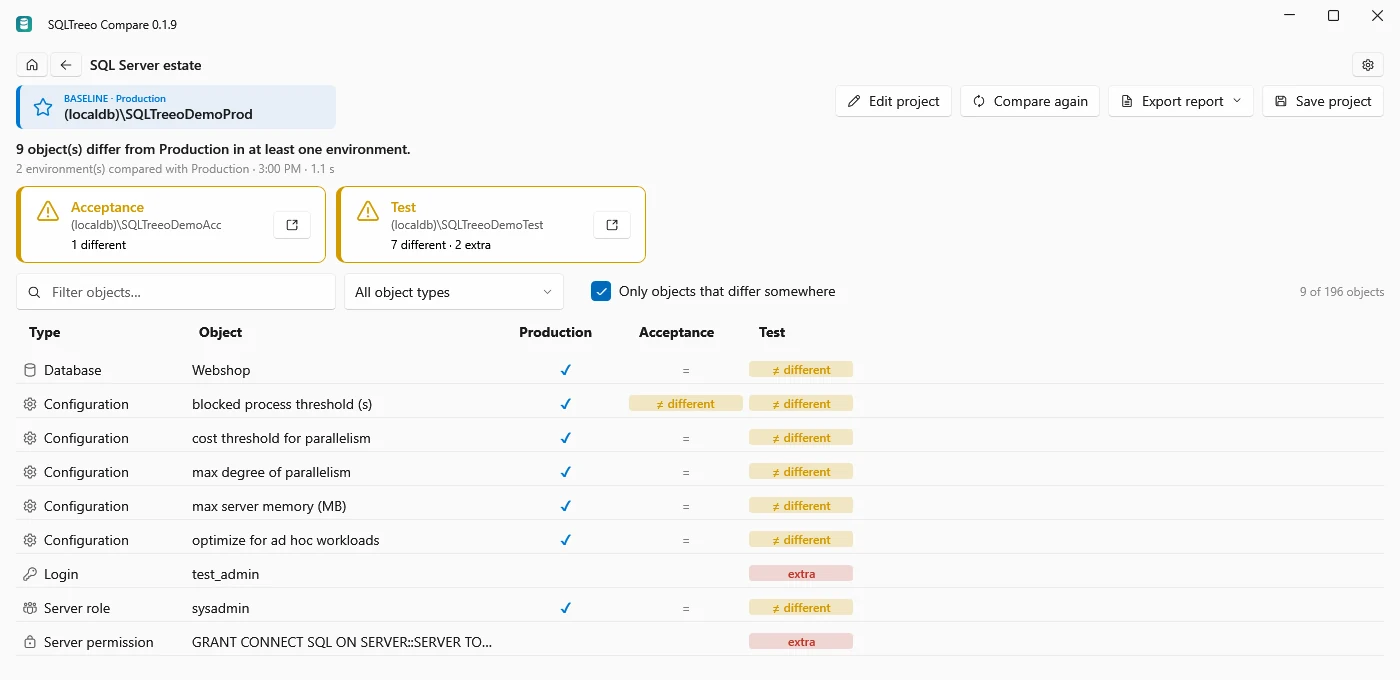
Every server is compared with the baseline. The matrix lists every setting and object that differs on at least one server: sp_configure values, trace flags, logins, server roles and permissions, credentials, linked servers, endpoints, database options and files, SQL Server Agent jobs, alerts and operators, Database Mail, Resource Governor and Extended Events sessions. In this example the Test server still has the default cost threshold and parallelism, less memory, a database in another recovery model and an extra sysadmin login.
- Click a tile to see only what differs on that server.
- Click a cell to open the comparison of the reference server with that server, with the item selected. From there Script… writes the configuration script that applies the reference settings to that server.
- Use Comparison options before you compare to ignore what differs on purpose, such as hardware, file system paths, the product version or database file sizes.
In a pipeline
Add --server to compare server configuration instead of database schemas:
sqlcompare environments --server -b "Server=sql-prod01;Integrated Security=true" -e "Acceptance=Server=sql-acc01;Integrated Security=true" -e "Test=Server=sql-test01;Integrated Security=true" --ignore-hardware --ignore-paths --format html --output estate.htmlThe exit code is 0 when every server matches the reference, 1 when one differs and 2 when one could not be read. Run it every night and you know the next morning when a server drifted.
Good to know
- Comparing several servers needs SQLTreeo Compare 0.1.9 or later.
- Sections that a platform does not have, such as SQL Server Agent on Azure SQL Database, are reported as warnings, not as differences.
- To compare two instances in detail, see Compare the configuration of two SQL Server instances.